
Welcome to iLok Help!🔗
Latest License Support Installers
Please try the Site Search (1) or browse the FAQ categories.
- You can also type F on any Help page to open the Site Search. Try it out!
You can also read the iLok License Manager User Manual, or check out our Support Videos.
Popular Topics🔗
If your old computer is broken, no longer accessible, or shows as a duplicate in iLok License Manager, a host computer activation reset can restore your activations.
If your old computer is broken, no longer accessible, or shows as a duplicate in iLok License Manager, a host computer activation reset can restore your activations.🔗
The steps to request a host computer activation reset within iLok License Manager are:
- Launch and sign into iLok License Manager with your iLok account
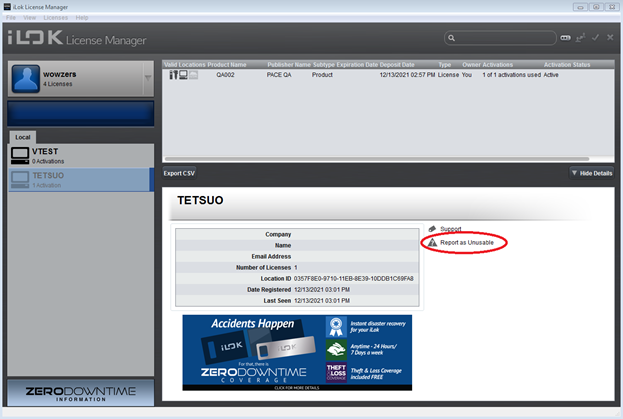
- On the left side of the application, select the host computer that has become inaccessible (it should be grayed out)
- Select the “Show Details” button to open that location’s details
-
Select the “Report as Unusable” link
-
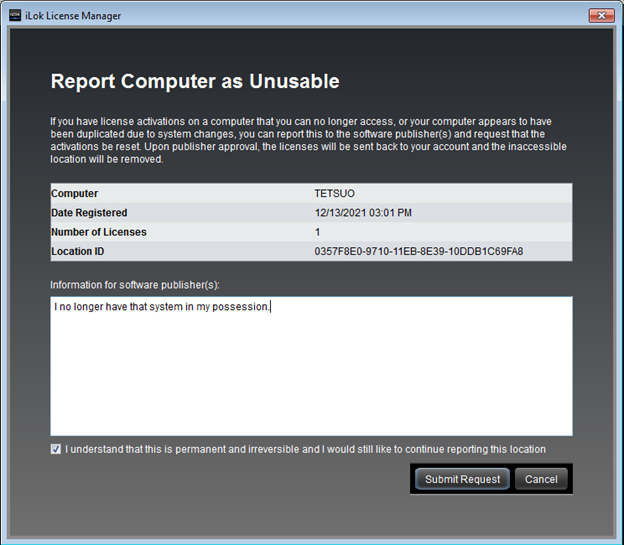
A “Report Computer as Unusable” dialog box will pop up with details on the computer location selected for reset
- Enter a reason for the reset request under the “Information for software publisher(s)” section (this field is required)
-
Enable the “I understand…” checkbox and select “Submit Request” to initiate the host computer activation reset request
-
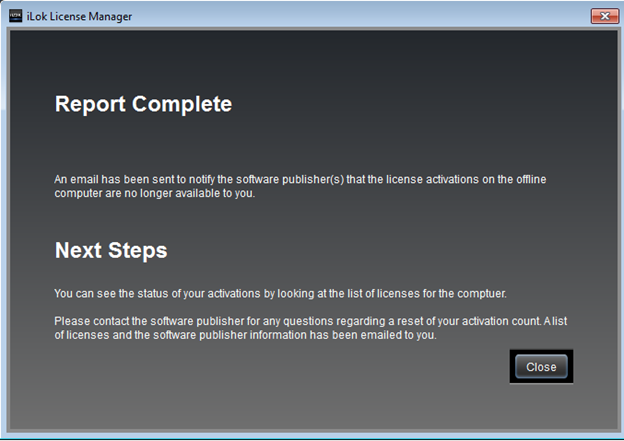
Review the “Report Complete” pop-up dialog and select “Close”
-
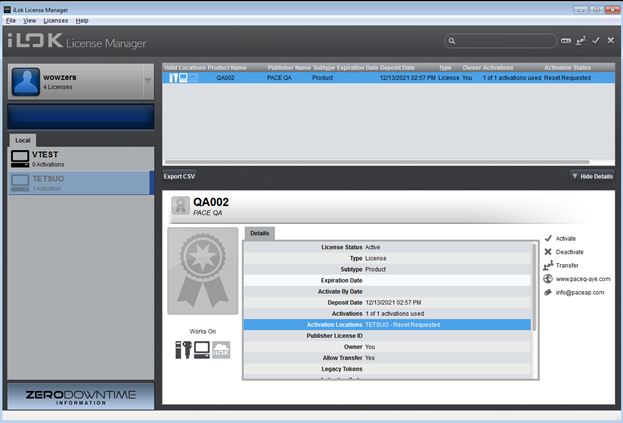
To check whether the request for host computer activation reset was properly submitted to the publisher, view the host computer’s information and verify that the Activation Location field indicates “Reset Requested”
PACE does not have the authority to approve or deny host computer activation resets.
If the publisher approves the reset request, the affected license activations will be returned into the iLok account for activation to another location. Once all license activation reset requests on an inaccessible host computer have been approved, the host computer location will be removed from the iLok account.
If the publisher denies the request, the affected license activations and location will remain inaccessible just as they were prior to the host computer activation reset request. Please contact the publisher if your request remains pending after a few business days.
If you have any questions involving a requested host computer activation reset, please contact the involved publishers for further details.
Can’t log into your iLok account because of an old email address or can’t remember your iLok account ID? Reset your password or recover your iLok user ID.
Can’t log into your iLok account because of an old email address or can’t remember your iLok account ID? Reset your password or recover your iLok user ID.🔗
-
You will need to have the User ID for the account.
We will email recovery information to the address on file for your account or to a different email after answering a few security questions.
-
You will enter the email address that was used to create an iLok account. Your User ID(s) will be emailed to that email address.
How to transfer a license you purchased or received from someone else to another user’s iLok account.
How to transfer a license you purchased or received from someone else to another user’s iLok account.🔗
To transfer a license, use the iLok License Manager application. When transferring a license, you will be asked to confirm your account information.
License transfers are irreversible Be absolutely positive you are transferring to the orrect iLok User ID (account username).
The fee for transferring a single license or bundle (locked group) is $25. The maximum total fee for transferring multiple licenses or bundles in a single transaction is $50. Credit cards are the only acceptable payment method at this time.
There are three ways to transfer licenses.
-
Note
Cmd-click on macOS orCtrl-click on Windows to select multiple licenses. Transfer button: Select the license(s) you wish to transfer by clicking them. Next, click on the transfer icon in the top right corner of the iLok License Manager window.
 -
Context menu: Right-click the license(s) you wish to transfer and select
Transfer License.... - Detail pane: Find the license you wish to transfer and select it, then click on
Show Details. Then click onTransferto start the process.
Related: I want to transfer large numbers of licenses or a bundle.
Related: What do I need to have to transfer a license to a different account?
Accidentally created two iLok accounts or have licenses split across two iLok accounts? Merge licenses and combine them into one account.
Accidentally created two iLok accounts or have licenses split across two iLok accounts? Merge licenses and combine them into one account.🔗
NOTE: Licenses can only be transferred if the publisher has chosen to allow transfers of those products.
Some products require publisher approval before a transfer can be completed. Some products do not allow transfers at all.
Do you currently have the iLok USB in hand?
- Yes — Transfer the licenses manually using iLok License Manager (faster and less expensive):
- Transfer the licenses to the destination account using iLok License Manager.
- Remove the now-empty iLok USB from the original account.
- Register the iLok USB to the destination account and activate the licenses to it.
- No — You’ll need to request an iLok reassignment from PACE Support instead.
Cost
- Manual transfer: $25 for a single license or bundle, $50 maximum for transferring multiple licenses or bundles in a single transaction.
- iLok Reassignment: $100 per iLok USB, subject to approval by the registered owner.